The Flutter interface
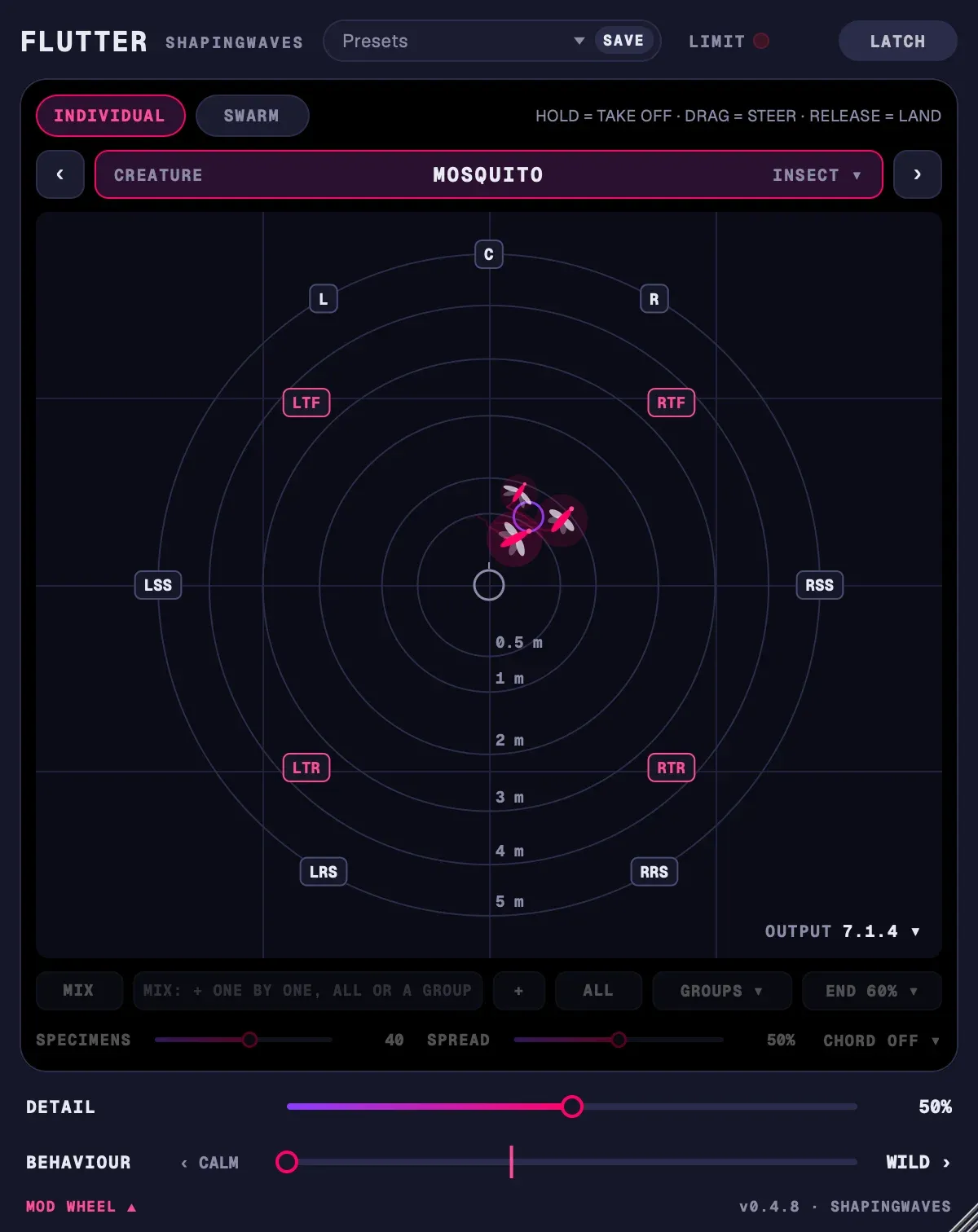
Flutter’s window is one column. From top to bottom:
Header
Section titled “Header”The top row shows FLUTTER and SHAPINGWAVES (the brand name hides when the window is narrow), then:
- The preset bar: one pill with the preset’s name and ▾, and a small SAVE inside it. Click the name for the preset list; click SAVE to save your settings as a new preset. A small dot next to the name means you have changed something since loading it. See Presets.
- LIMIT: a light that blinks red while Flutter’s safety limiter is working, with the deepest reduction in dB next to it.
- LATCH: keeps the creature or swarm flying without holding a key or the mouse.
Mode and creature
Section titled “Mode and creature”The first rows inside the main panel:
- INDIVIDUAL and SWARM choose the mode.
- To the right, a hint line tells you what to do: “HOLD = TAKE OFF · DRAG = STEER · RELEASE = LAND”, or the Swarm and LATCH versions of it. While you use MIDI learn, its messages appear here.
- Below: ‹ CREATURE name ▾ ›. The arrows step through the creatures; click the name for the menu of all creatures (insects first, then birds). The right side says whether it is an INSECT or a BIRD. When a swarm mix is on, it shows how many creatures are in the mix.
Flight screen
Section titled “Flight screen”The big screen in the middle is a top view of the room. You stand in the middle: the small ring with a tick shows the listener (the microphone), and the tick points to the front.
- Rings mark the distance from the centre: 0.5, 1, 2, 3, 4 and 5 m.
- Speaker boxes show the speakers of the output format: L and R for Stereo, C for Mono, all speakers for surround (heights in pink on an inner ring).
- The violet ring is where the creature flies. In Swarm mode a larger, faint circle around it shows the size of the swarm.
- The creatures are drawn as they fly, each pointing where it is going. In a mix, each creature has its own colour.
- OUTPUT ▾ (bottom right) shows and changes the output format.
- In the Standalone app, the render status appears at the bottom left.
How to play on the screen:
| Gesture | What it does |
|---|---|
| Press and hold | Take off from that spot (like holding a key) |
| Drag | Steer: direction and distance |
| Release | Fly back and land |
| Shift-drag | Move the microphone (no take-off). Near the centre it snaps back |
MIX row
Section titled “MIX row”Below the screen: MIX, the ratio strip, +, ALL, GROUPS ▾ and END. These put several creatures into one swarm and decide what the swarm does when you let go. See MIX row.
Swarm row
Section titled “Swarm row”SPECIMENS (how many), SPREAD (how far apart) and CHORD ▾ (tune the swarm to a chord). See Swarm row.
The MIX and swarm rows only work in Swarm mode. In Individual mode they stay in place but are faded.
DETAIL and BEHAVIOUR
Section titled “DETAIL and BEHAVIOUR”Two bars under the main panel:
- DETAIL sets how many sputters and close-up sounds there are. For flapping creatures this bar becomes FLAP SPEED.
- BEHAVIOUR goes from ‹ CALM to WILD ›. When you use the mod wheel, a mark on this bar shows how wild it really is right now.
In the Standalone app, RENDER LOOP and RENDER TAKE (RENDER SWARM in Swarm mode) sit at the right of the DETAIL row.
Footer
Section titled “Footer”At the bottom: MOD WHEEL ▲ lights up while the mod wheel is up, and the version number sits on the right.
Mouse tips
Section titled “Mouse tips”- Scroll anywhere that has no scroll function of its own to change BEHAVIOUR.
- Click a bar’s value (for example the number at the right of DETAIL) to type a value.
- Right-click a control for MIDI learn and its OSC address. Right-click anywhere else for the Flutter menu.
- The window can be resized by dragging its corner.